When starting off as a new Marketing Cloud user, the terminology can be a bit daunting/confusing with regard to defining how your customers live in the account. Individuals may be referred to as either contacts, subscribers, or both because a single customer/individual can reside at three different levels within the application.
Level One: All Contacts and Contact Key/ID
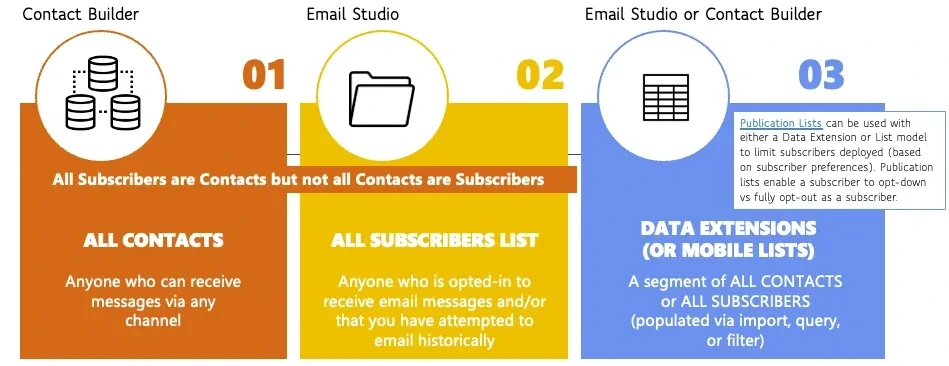
ALL CONTACTS is accessed from within Audience Builder > Contact Builder of Marketing Cloud. ALL CONTACTS functions at the Enterprise/Parent level and includes anyone loaded to Marketing Cloud manually or via API for any type of messaging (email, mobile push, sms, etc.). Contacts, Leads, and Users objects for Salesforce CRM synchronized through Marketing Cloud Connect are also included within ALL CONTACTS. The sum/overlap of all of these contacts is referred to as the "Contact Count".
The unique identifier for records within ALL CONTACTS is known as the Contact Key. On the backend, a Contact Key (which is alphanumeric) is also aligned with a unique and numerical Contact Id. Because of this, you may hear them used in boring conversations interchangeably but technically they are two separate values. The confusion of Contact Key vs Contact Id tends to become more common when connecting the clouds using Marketing Cloud Connect. The reason is because, when using Sales/Service Cloud, the value of the "id" field of the "contact or lead" object is sometimes referred to as the Contact Id of that contact even though it's really the "Contact Key".
Think of ALL CONTACTS as a server that holds multiple folders (channels) of data. We'll come back to this analogy as we talk through the remaining levels of data.
Learn More about ALL CONTACTS at help.salesforce.comLevel Two: All Subscribers, Subscriber Key/ID
The ALL SUBSCRIBERS LIST can be thought of as a sub-set of ALL CONTACTS and is unique to the email channel. If ALL CONTACTS is the server, ALL SUBSCRIBERS is a folder on the server. A frequently used phrase is that "all subscribers are contacts but not all contacts are subscribers". This is because not everyone in ALL CONTACTS has "subscribed" to receive emails for example. They may be receiving SMS messages only or exist but have not been sent anything at all. To borrow an earlier analogy, think of the ALL SUBSCRIBERS LIST as a folder on the server that holds several spreadsheets (aka data extensions).
ALL SUBSCRIBERS includes anyone whom you have attempted to email historically or that you may have loaded to the ALL SUBSCRIBERS list manually or via API in anticipation of emailing in the future. Each unique person that exists in ALL SUBSCRIBERS is given a unique Subscriber Key. Similar to the Contact Key, a Subscriber Key has an associated back-end field known as the Subscriber Id. Also similar to the Contact Key, you will rarely if never need to know the Subscriber Id value for an individual but their Subscriber Key is referenced and leveraged extensively to uniquely identify an individual who is sent emails.
It is always recommended that a unique identifier other than email address be used for the Subscriber Key because email addresses can be shared across multiple people. For example, let's say a mother wants to sign up her 3 children and herself to get a free ice cream email at her local ice cream shoppe on their birthdays. There could be 4 subscribers (subscriber keys) living in the system with different birthdates but having the same email address. If the email address was used as the unique identifier (subscriber key), only one person in the house would receive free ice cream and three would be sad.
The true power of the platform happens when you wisely set the Subscriber Key value for a new individual in a channel to be the same value as the Contact Key that the individual was assigned to in ALL CONTACTS. This is established and/or handled as you add/import/sync an individual to a DATA EXTENSION or a LIST.
Learn More about ALL SUBSCRIBERS at help.salesforce.comLevel Three: Data Extensions (or Lists)
A Data Extension (DE) is a segment of ALL CONTACTS or ALL SUBSCRIBERS as well as a vessel to import/sync a new group of contacts and/or subscribers to the system. Data Extensions may be used for sending (sendable) or used to hold additional information about the people you are sending to (non-sendable). In addition, Data Extensions can be standard or based upon the data from another data extension or source (filtered, random, or synchronized).
A Standard Data Extension allows you to create a container with the customized fields that you want.
A Filtered Data Extension allows you to filter the results of a Standard DE into a copy. These can only be created in Email Studio but accessible in Contact Builder and other areas of the application.
A Random Data Extension allows you to randomly split a Standard DE into multiple data extensions for testing or sending to smaller groups. Again, you can only create these in Email Studio but they are accessible in Contact Builder and other areas of the application.
A Synchronized Data Extension is only used when using Marketing Cloud Connect. These hold the data that is synchronized regularly from Sales Cloud.
A Salesforce Data Extension is just a standard data extension that has been placed within the Salesforce Data Extensions folder.
There are a few more data extension types which are based upon a system template but we'll save that discussion for another day. The focus of this discussion will be upon standard and synchronized data extensions. Think of a Standard Data Extension as a spreadsheet of data within the (Subscribers) Folder. The way you "add" a sendable data extension to the folder is by establishing the send relationship that it will have back to the Subscriber Key. How you name the identifying field in your data extension doesn't matter. You could call it SubscriberKey, ContactKey, ContactID, SalesforceID, CustomerID, etc. What is more important is that you designate the association back to the unique identifier in ALL SUBSCRIBERS when creating a sendable data extension. The value in the field that you choose will also be used as the Contact Key in ALL CONTACTS.

The great thing is that you do not need to add an individual to ALL SUBSCRIBERS or ALL CONTACTS ahead of time to be able to email them. When you send your first email to a subscriber in a sendable data extension, if the subscriber key of the person you are sending to does not already exist, they are added to ALL SUBSCRIBERS and ALL CONTACTS at send time.
When using Marketing Cloud Connect with Salesforce CRM, there are three potential Salesforce objects that hold contact information: Contacts, Leads, and Users. When you synchronize any of these, they are automatically added as Contacts and the "ContactKey" field for the object is set as the "Contact Key" in ALL CONTACTS. The name of the field is "ContactKey" for the Contacts Synchronized DE and "_ContactKey" in Leads or Users and the value inside the field matches up with the field named "Id" in each of these. These individuals exist as contacts as soon as they sync but are not yet created in ALL SUBSCRIBERS.
How do you get them into ALL SUBSCRIBERS? You would create a Data Extension for sending to them through creating a filter or a query and then, similarly to a standard DE, the first time you send to them, they will be created as a record in ALL SUBSCRIBERS. Alternatively, if you send to them through a Salesforce Data Entry Event in Journey Builder, they are also created as a row in ALL SUBSCRIBERS.
Learn More about Data Extensions at help.salesforce.comWrapping This Up
Now that you hopefully understand a few concepts, let's go backwards to lock it all in. Let's say that you created a sendable data extension with only 4 fields in it: UniqueId, EmailAddress, FirstName, LastName. You set it to be a Sendable DE and chose a Send Relationship that related the field named "UniqueId" back to the Subscribers virtual folder's "Subscriber Key". You then added a brand new customer to the DE who had a UniqueId value of "0035e000003CABCAA4" and sent an email using this Sendable DE.
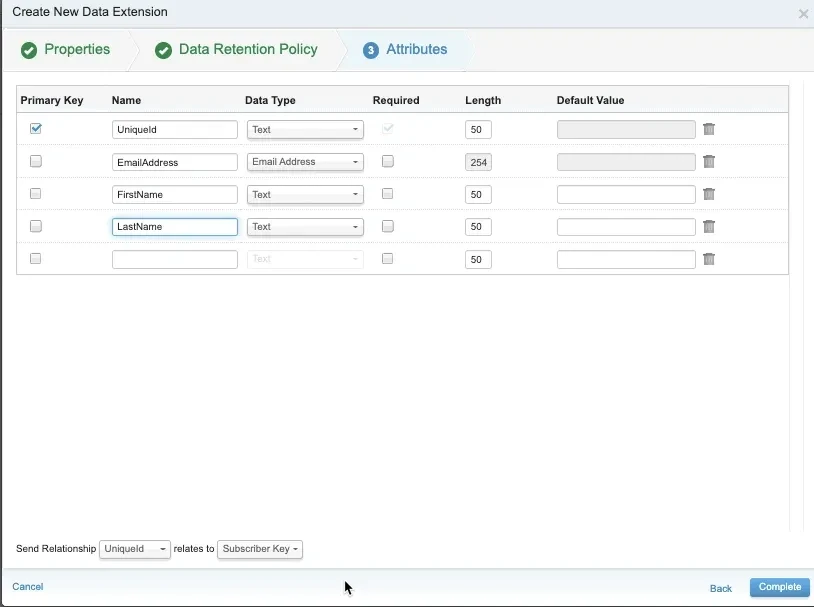
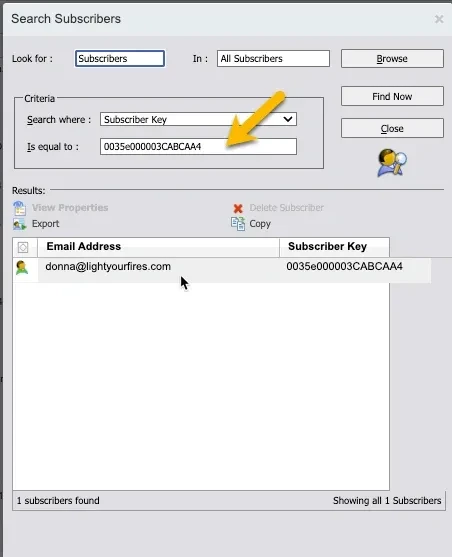
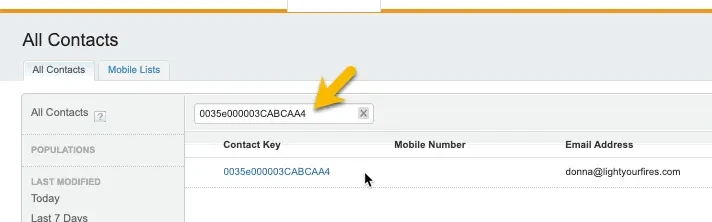
After the first email send to the DATA EXTENSION (level 3), a row will be created in ALL SUBSCRIBERS (level 2) with a Subscriber Key of "0035e000003CABCAA4". In addition, a row will also be added to ALL CONTACTS (level 1) with a Contact Key of "0035e000003CABCAA4".
Need Help Getting Your Data Architecture Right?
Light Your Fires can audit your contact and subscriber key setup and help you build a data model that scales cleanly with your Salesforce ecosystem.
Let's Talk