"Automation failed due to system error" is a rite of passage for Salesforce Marketing Cloud Automation Studio users. It is non-descriptive, frustrating, and can bring your data processes to a halt.
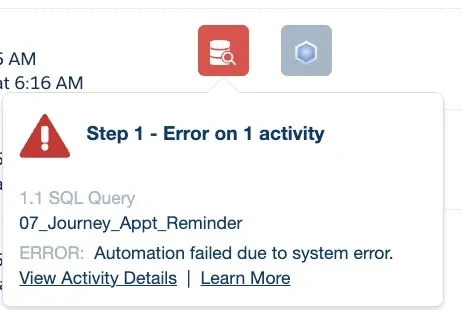
While the error message is vague, the root cause is usually specific. Through this post, I want to share a few of the most common culprits and how to quickly resolve them.
Field Length (String Truncation)
The majority of the time, this error occurs when a value in your source data exceeds the maximum character length defined in your target Data Extension. Essentially, you are trying to fit a gallon of water into a pint-sized jar.
Unfortunately, the error log rarely tells you which field is overflowing. SQL is your best friend here.
How to identify:
- Open and copy the query into Query Studio
- Modify the SELECT statement. Instead of selecting the data, select the maximum length of the data using
MAX(LEN(FieldName)).
For example, if you suspected that the issue lay within FirstName or LastName, your debug query might look something like this:
SELECT
    MAX(LEN(FirstName)) as Max_FirstName,
    MAX(LEN(LastName)) as Max_LastName
FROM [Your_Source_Data_Extension]
3. Compare the results. If the query returns a length of 55 for FirstName, but your target Data Extension is set to Text(50), you have found your issue. Either increase the field length in the target DE or use LEFT() in your query to truncate the data.
Ambiguous Column Name
Another common trigger occurs when you modify a Data Extension that is part of a joined query.
The Scenario: Imagine you have a query joining DE_1 and DE_2. Originally, only DE_1 had a field named FirstName. Your query likely references FirstName without an alias (e.g., DE_1.FirstName) because, at the time, it was unique.
Later, you decide to add a FirstName field to DE_2. Suddenly, the SQL engine doesn't know which FirstName you want, resulting in a system error.
The Fix: If you suspect this is the case, open the Automation and attempt to Validate the query activity manually. The validation tool is often more descriptive than the automation log. It will likely throw this error:
"An error occurred while checking the query syntax. Errors: Ambiguous column name 'FirstName'."
To resolve this, simply add the table alias to your field selection (e.g., change FirstName to a.FirstName) to specify exactly where the data should come from.
Data Type or Formula Result
While sometimes more challenging to detect and resolve, two additional issues stem from data type mismatches that result post launch or a resulting formula error producing a value that cannot be inserted such as a resulting negative value that results from data received in the future. If you are unable to resolve the issue with the first 2 items above, consider these as possibilities to sleuth.
While "System Error" can mean many things, checking for field truncation and ambiguous columns will resolve the issue the majority of the time.
#marketingchampion #marketingchampions #SFMC #SQL
Need Help With Your SFMC Automations?
At Light Your Fires, we specialize in Salesforce Marketing Cloud implementation, troubleshooting, and training. If your automations are giving you grief, we'd love to help.
Let's Talk